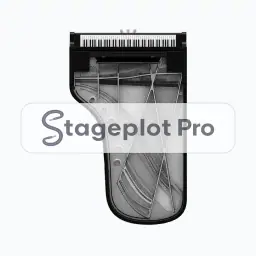
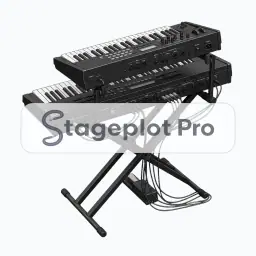
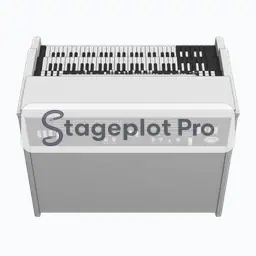
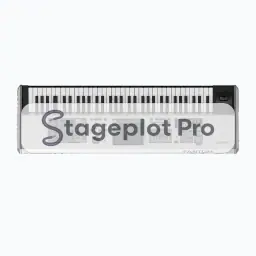
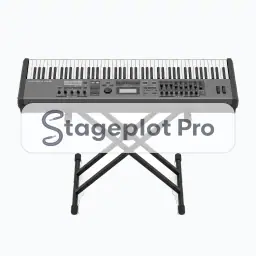
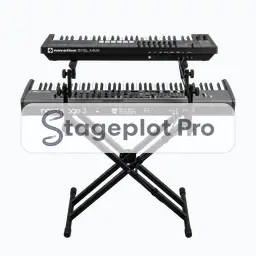
Single Keys stage plot icon, Keys gear in the Stageplot Pro library
Single Keys stage plot icon. This public preview carries a watermark; the version inside the editor does not.

Keys

Single Keys Stage Plot Icon

The Single Keys icon draws a keyboard rig at a believable footprint instead of a placeholder box. On a stage plot it marks a keyboard position and the stereo pair it sends to the console, which is what lets a venue crew read the plan in a single pass.

Place it, rotate it, and give it a label that matches the language your crew already uses. The export keeps all of it.

Category
Keys (11 icons)
Input list
2 channels
Mic or DI default
DI
Plan
Included free

Using the Single Keys icon on a stage plot

Where it goes on stage

Stage position is the thing that gets argued about at load in, so it is worth drawing accurately. Keyboard rigs sit stage left or stage right with the player facing across the stage, so they can see both the drummer and front of house without turning their back on the room. If the room forces a compromise, move the icon and export again. A fresh PDF is cheap; an argument at load in is not.

What the crew needs to know

One thing worth writing down. Confirm stand type and whether the rig is single or double tier. Height changes the sightline for everyone behind it.

On the input list

Single Keys is a stereo source, so it produces 2 channels on the input list, L and R. Both default to a DI input, no stand and phantom power off. It sorts at position 5 in the drums first, vocals last channel order that front of house engineers expect.

Console exports

Channel names travel with the plot. Export a scene file for an X32, M32, or Wing, or a channel name CSV for dLive, Avantis, SQ, DiGiCo, and Yamaha CL and QL. See the console guides.
More Keys

11 icons share the Keys section of the palette. These are the ones most often placed alongside Single Keys.

View all Keys icons

Gear that usually shares the plot

Marks a keyboard position and the stereo pair it sends to the console is only part of the picture. These icons come from AC & DI, Monitors and People, the sections that most often appear on the same drawing.