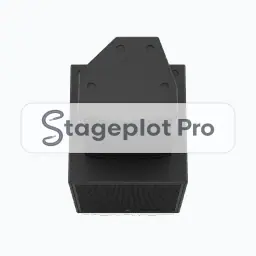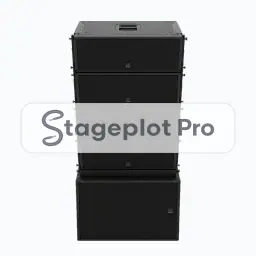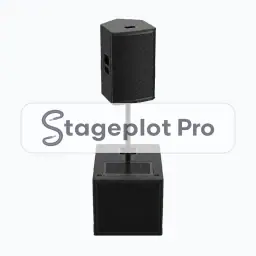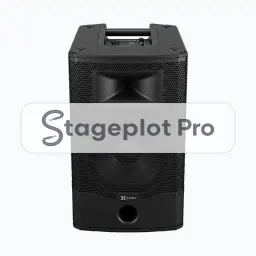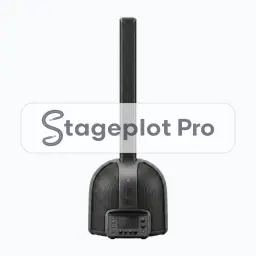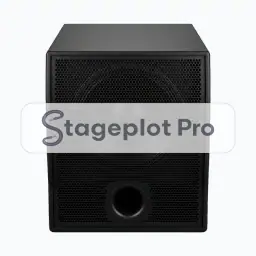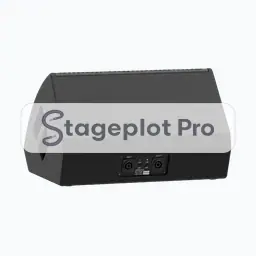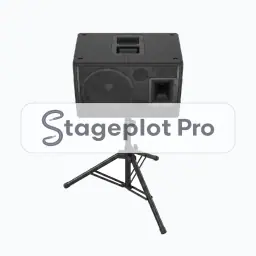
Top + Tripod stage plot icon, PA gear in the Stageplot Pro library
Top + Tripod stage plot icon. This public preview carries a watermark; the version inside the editor does not.

PA

Top + Tripod Stage Plot Icon

Top + Tripod sits in the PA section, 14 icons that describe how sound gets on and off the stage. This one shows where the system lives and how much stage it consumes.

Add it, label it, and save the plot. The next time this band books, the layout is already done.

Category
PA (14 icons)
Input list
No input list rows
Mic or DI default
Not an audio source
Plan
Included with Pro

Using the Top + Tripod icon on a stage plot

Where it goes on stage

Put it where it will really stand, not where it is convenient to draw. Mains sit outside the downstage corners with subs on the deck or flown, positioned to keep the front row covered without firing into the vocal mics. Stageplot Pro keeps every icon to scale, so the spacing you draw is the spacing the crew builds.

What the crew needs to know

The detail that saves a phone call. Note whether the PA is house supplied or provided. Coverage arguments are much cheaper before the truck arrives.

On the input list

Top + Tripod is not an audio source, so it adds no rows to the input list. It is there to make the drawing accurate: it shows where the system lives and how much stage it consumes, and the channel count stays clean because nothing silent is padding it out.

Console exports

Channel names travel with the plot. Export a scene file for an X32, M32, or Wing, or a channel name CSV for dLive, Avantis, SQ, DiGiCo, and Yamaha CL and QL. See the console guides.

More PA

14 icons share the PA section of the palette. These are the ones most often placed alongside Top + Tripod.

View all PA icons

Gear that usually shares the plot

Shows where the system lives and how much stage it consumes is only part of the picture. These icons come from Monitors, Stageboxes and Cases, Stairs, Risers, Trusses, the sections that most often appear on the same drawing.