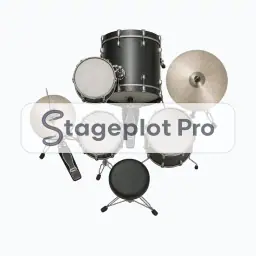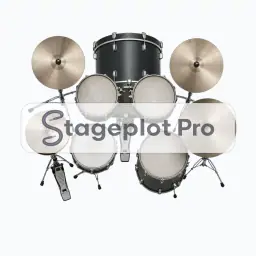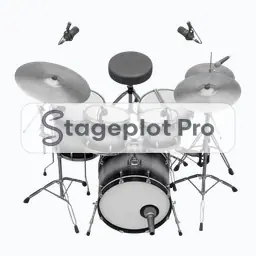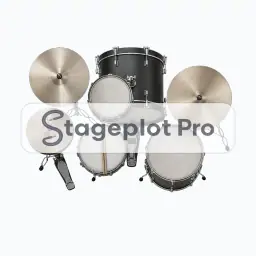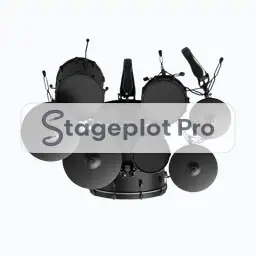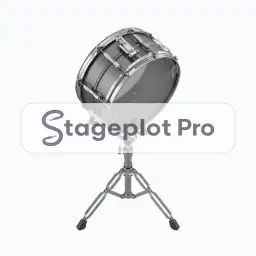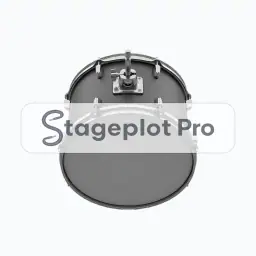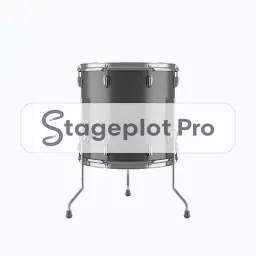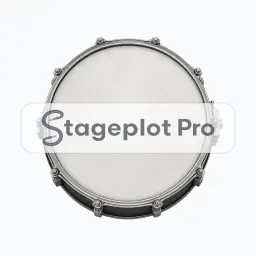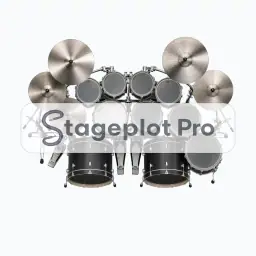
Drums Dbl Kick stage plot icon, Drum Kits gear in the Stageplot Pro library
Drums Dbl Kick stage plot icon. This public preview carries a watermark; the version inside the editor does not.

Drum Kits

Drums Dbl Kick Stage Plot Icon

Use the Drums Dbl Kick icon when the drum kit has to be unambiguous on the page. It anchors the plot and drives the largest single block of channels on the input list, and nobody reading the plot has to guess what the shape is meant to be.

Drag it onto the canvas, resize it, rename the label, and it lands in the exported PDF exactly where you left it.

Category
Drum Kits (19 icons)
Input list
Expands with the kit size you choose
Mic or DI default
Dynamic
Plan
Included with Pro

Using the Drums Dbl Kick icon on a stage plot

Where it goes on stage

Where it sits on the deck changes how the rest of the plot reads. Kits sit upstage centre on a riser wherever possible, so the drummer plays behind the vocal line and sits above the sightline of the front row. Snap the icon to the grid and the distances stay believable on a printed page.

What the crew needs to know

Say this part explicitly. Say whether the kit is supplied and give the kick size. Mic choice, riser depth, and shield height all follow from that one answer.

On the input list

Drums Dbl Kick is treated as a full kit, so Stageplot Pro expands it into a per drum channel list once you pick a kit size. A three piece and a ten piece double kick produce very different input lists from the same icon. It sorts at position 1 in the drums first, vocals last channel order that front of house engineers expect.

Console exports

Channel names travel with the plot. Export a scene file for an X32, M32, or Wing, or a channel name CSV for dLive, Avantis, SQ, DiGiCo, and Yamaha CL and QL. See the console guides.

More Drum Kits

19 icons share the Drum Kits section of the palette. These are the ones most often placed alongside Drums Dbl Kick.

View all Drum Kits icons

Gear that usually shares the plot

Anchors the plot and drives the largest single block of channels on the input list is only part of the picture. These icons come from Percussion, Drum Shields and Mics, the sections that most often appear on the same drawing.