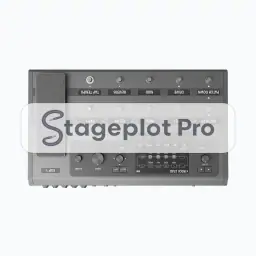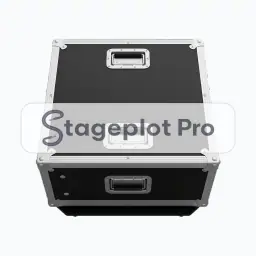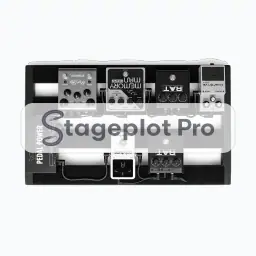
Multi Pedal FX stage plot icon, Guitars gear in the Stageplot Pro library
Multi Pedal FX stage plot icon. This public preview carries a watermark; the version inside the editor does not.

Guitars

Multi Pedal FX Stage Plot Icon

Drop the Multi Pedal FX icon onto the canvas and the plot immediately marks a player position and the signal path that comes with it. That is the difference between a drawing a crew can build from and a sketch they have to interpret.

Add it, label it, and save the plot. The next time this band books, the layout is already done.

Category
Guitars (17 icons)
Input list
No input list rows
Mic or DI default
Not an audio source
Plan
Included with Pro

Using the Multi Pedal FX icon on a stage plot

Where it goes on stage

Put it where it will really stand, not where it is convenient to draw. Guitar positions sit downstage of the backline they use, angled in toward the drummer so the player can hold time by eye as well as by ear. Stageplot Pro keeps every icon to scale, so the spacing you draw is the spacing the crew builds.

What the crew needs to know

The detail that saves a phone call. State whether guitars run through amps or straight to a DI. That single line decides roughly half the channel list.

On the input list

Multi Pedal FX is not an audio source, so it adds no rows to the input list. It is there to make the drawing accurate: it marks a player position and the signal path that comes with it, and the channel count stays clean because nothing silent is padding it out.

Console exports

Because the input list is generated rather than typed, it exports straight to console: X32 and M32 scene files, Wing scenes, and CSV channel names for the Allen and Heath, DiGiCo, and Yamaha families. See the console guides.

More Guitars

17 icons share the Guitars section of the palette. These are the ones most often placed alongside Multi Pedal FX.

View all Guitars icons

Gear that usually shares the plot

Marks a player position and the signal path that comes with it is only part of the picture. These icons come from Amps, AC & DI and People, the sections that most often appear on the same drawing.